How to put affirmations on your iPhone Lock Screen
You pick up your phone dozens of times a day. Put a good sentence there and you read it every time. Here are three ways to do it, from a one-off wallpaper to words that change on their own.
Quick answer: save a photo with your affirmation on it and set it as your Lock Screen wallpaper, or add an affirmation widget under the clock so the words change through the day.
Way 1: Make an affirmation wallpaper
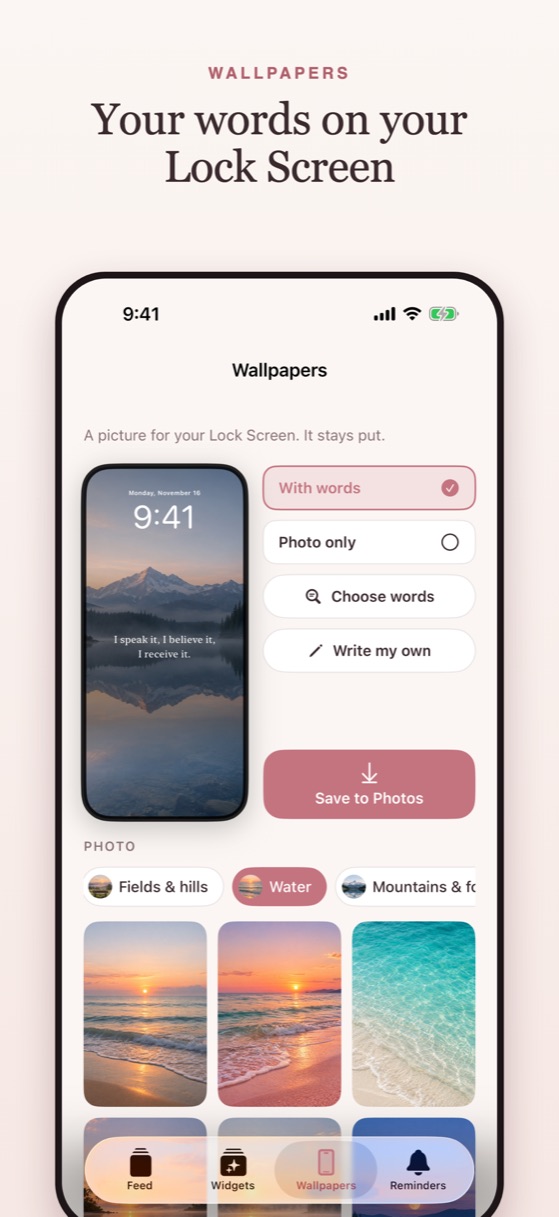
This puts your words right on the picture behind the clock. It never changes, so choose a line you want to hear every day.
- Make the picture. You can do this for free in the Photos app: open a photo, tap Edit, then the Markup pen, tap + and choose Add Text. Or use the Wallpapers tab in Affirmosa: choose your words, pick a nature photo and tap Save to Photos.
- Keep the words in the middle. The clock covers the top of the screen and the flashlight and camera buttons sit at the bottom, so the middle third is the safe spot.
- Set it. Touch and hold your Lock Screen until it zooms out, tap +, choose Photos, pick your picture and tap Add.
Way 2: Add an affirmation widget under the clock
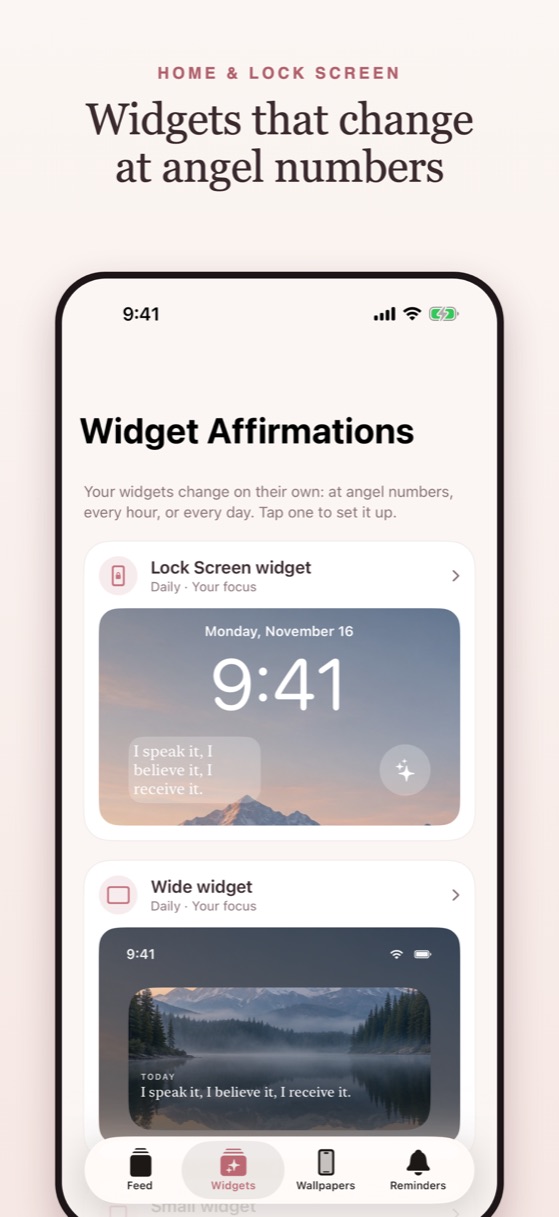
A Lock Screen widget is a small strip of text under the clock. Unlike a wallpaper, it can show a new affirmation on its own: every morning, every hour, or at angel numbers like 11:11 and 2:22.
- Install an affirmation app with Lock Screen widgets, such as Affirmosa, and choose the kind of affirmations you want.
- Touch and hold your Lock Screen, then tap Customize and choose the Lock Screen.
- Tap the box under the clock, find the app in the list, and tap its widget to add it.
- Tap Done.
Lock Screen widgets show plain white text (Apple's rule), so they pair well with a calm photo wallpaper without words.
Way 3: Get an affirmation as a reminder
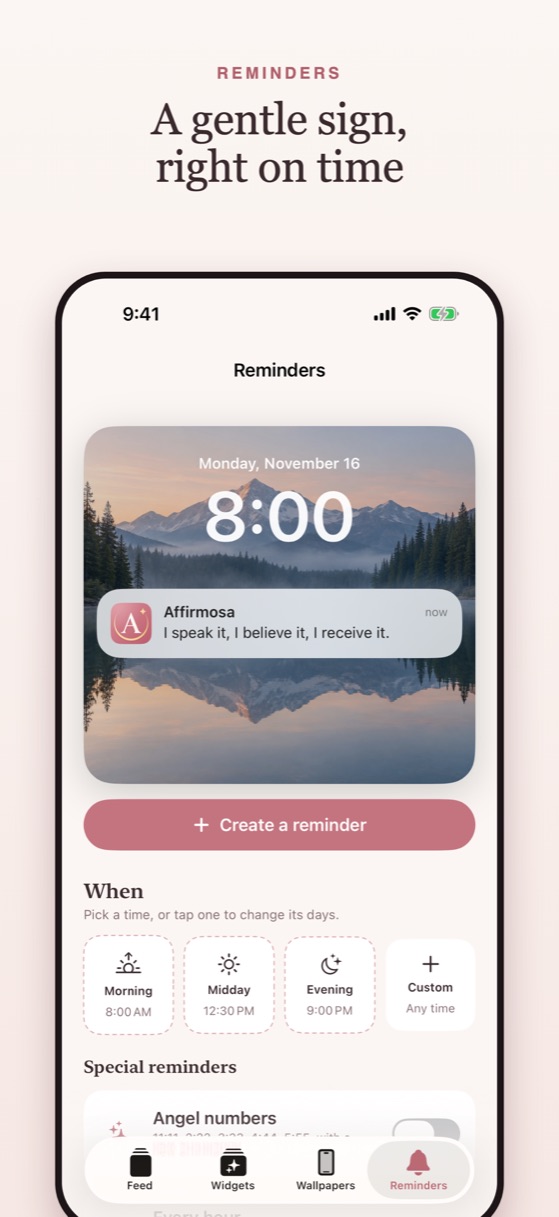
Reminders appear on your Lock Screen as a notification, so a fresh line shows up even when you are not looking for it. In Affirmosa you can pick morning, midday and evening, your own times, or the angel numbers.
If reminders don't show on your Lock Screen, open Settings, tap Notifications, choose the app and make sure Lock Screen is ticked.
10 affirmations that fit on a Lock Screen
Short lines read best at a glance. These are from the Affirmosa library:
- I am creating the life of my dreams.
- Something wonderful is about to happen.
- Everything is working out in my favor.
- Today is going to be a good day.
- I walk in knowing I belong.
- My voice matters.
- I am worthy of love and respect.
- I am enough, and I am proud of who I am.
- My peace is louder than my thoughts.
- I have so much to be thankful for.
Which way should you choose?
- One line you love: a wallpaper. Free, and done in two minutes.
- Something new to read through the day: a Lock Screen widget.
- A nudge when you're busy: reminders.
Many people use two together: a wallpaper of a calm photo with a widget carrying the words, so the picture stays and the affirmation changes.
Questions
Can you put affirmations on your iPhone Lock Screen?
Yes. Set a photo with your affirmation on it as your wallpaper, add an affirmation widget under the clock, or turn on affirmation reminders, which appear on the Lock Screen.
Is there a free way to put words on my Lock Screen?
Yes. In the Photos app, open a photo, tap Edit, then Markup, and add text. Save it and set it as your wallpaper.
Can my Lock Screen affirmation change every day?
A wallpaper stays the same, but a Lock Screen widget from an affirmation app can change once a day, every hour, or at angel numbers like 11:11.
Why is my Lock Screen widget white instead of colored?
Apple shows Lock Screen widgets in white text that blends with your wallpaper. Color comes from the wallpaper behind it.
Coming soon to theApp Store